Spice up your PowerShell with Starship

I am a information security professional with interest mainly in defenses/ blue teaming. I enjoy leisure running 🏃♂️ and PC games.
I was supposed to do a bunch of stuff in PowerShell, so I was thought let spice up that terminal and not feel so miserable i.e. how to procrastinate with less guilt.
Install the required font
Install the required nerd font, of course you need to set up the font to be used by PowerShell.
Install starship
we will be using starship as the prompt, we can install via:
via chocolatey
choco install starshipor, via msi installer
Configure PowerShell
Configure your PowerShell to use starship, this can be achieved by editing Microsoft.PowerShell_profile.ps1.
Typically the path is ~\Documents\PowerShell\Microsoft.PowerShell_profile.ps1 or ~/.config/powershell/Microsoft.PowerShell_profile.ps1
and you can use notepad to edit Microsoft.PowerShell_profile.ps1
notepad $PROFILE
and add the following line
Invoke-Expression (&starship init powershell)
if that didn’t work, you might don’t have the permission to run unsigned script. Try using this to add permission:
Set-ExecutionPolicy -ExecutionPolicy RemoteSigned -Scope LocalMachine
refresh current PowerShell profile
. $profile
Configure starship
you can configure starship further by first creating the config file
New-Item -ItemType Directory -Force ~/.config;New-Item -ItemType file ~/.config/starship.toml;
This newly created directory and config file can be found at the user's home directory, e.g. C:\Users\<UserName>.
and I use preset from starship by running
starship preset pastel-powerline -o ~/.config/starship.toml
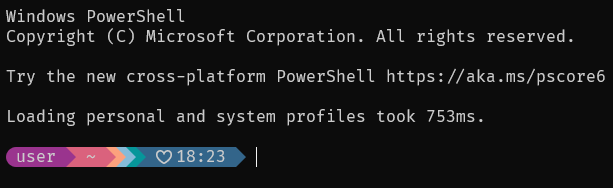
Now to stop procrastinating and do some work! right after I did the same thing with cmd and my WSL bash.